How to Correct an Upside-Down View on CP Plus EzyKam+ CP-E48Q When Mounted on the Ceiling
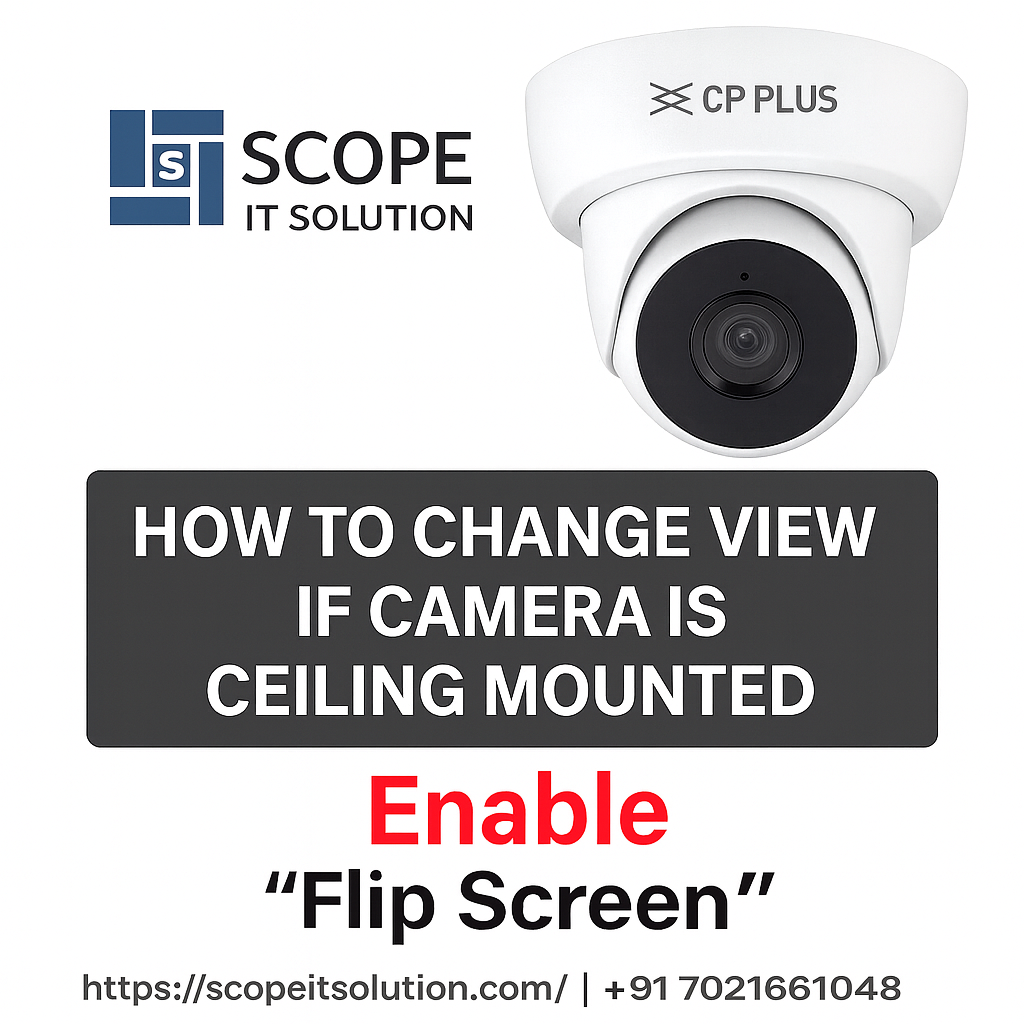
Many users install the CP Plus EzyKam+ CP-E48Q on the ceiling for better room coverage, only to find that the camera view appears upside down in the app.
Most users assume that this model does not support screen rotation and try adjusting the camera physically.
However, the CP-E48Q includes a hidden “Flip Screen” option inside the EzyKam+ app, which is not commonly known, even among installers.
At Scope IT Solution, we discovered this setting during real-world troubleshooting, and it allows instant correction without re installation.
If you require professional assistance with camera configuration or installation, you can always contact our team for support.
Where the Flip Screen Option Is Located
The screen rotation setting is available inside the EzyKam+ mobile application, but it is not visible in the standard display menu.
Steps to Enable Flip Screen:
-
Open the EzyKam+ App
-
Select your CP-E48Q camera
-
Tap Settings
-
Go to Basic Function Settings
-
Enable Flip Screen
The camera view will instantly rotate by 180°, correcting the upside-down image without restarting the device.
Why This Setting Is Important
1. Perfect for Ceiling Mount Installations
Ceiling mounting provides wider coverage, but an inverted view makes monitoring difficult. The Flip Screen option solves this cleanly.
2. No Physical Adjustment Required
Many users try to rotate the camera head manually, which is unnecessary once this setting is enabled.
3. Corrects Live View and Recordings
The flip applies to:
-
Live view
-
SD card recordings
-
Motion detection footage
This ensures professional-quality surveillance output.
Common Mistake Users Make
Most users check only Display Settings, where the flip option does not exist.
The correct location is Basic Function Settings, which is why this feature often goes unnoticed.
Ideal Use Cases
This solution is especially useful for:
-
Home indoor cameras
-
Office monitoring
-
Shops and retail counters
-
Classrooms and clinics
For complete CCTV setup guidance and support, you can visit our home page to explore our services.
Need Professional CCTV Installation in Virar West or Vasai? If you need help with CP Plus camera setup, configuration or complete CCTV installation in Virar West (Global City), Vasai or Nalasopara — Scope IT Solution is your trusted local expert. We install and configure CP Plus, Hikvision and Dahua cameras for homes, offices and businesses across the Vasai-Virar region. 📞 Call: 7021661048 💬 WhatsApp for free consultation
Conclusion
The Flip Screen option in CP Plus EzyKam+ CP-E48Q is a simple but powerful feature that instantly fixes upside-down camera views after ceiling installation.
Because it is hidden inside Basic Function Settings, many users are unaware of it.
Enabling this option takes less than 10 seconds and avoids unnecessary physical adjustments or re installation.
If you need help with CP Plus camera setup, troubleshooting, or professional installation, contact Scope IT Solution for expert assistance.
When a CP Plus EzyKam+ camera is mounted on the ceiling, the image appears upside down. This can be fixed instantly using the Flip Screen option in Basic Function Settings inside the EzyKam+ app.
Open the EzyKam+ app → Select your camera → Settings → Basic Function Settings → Enable Flip Screen. The view will rotate 180° immediately.
The rotation setting is called “Flip Screen” and is located under Basic Function Settings in the EzyKam+ app — NOT in Display Settings where most users look.
Yes, the CP-E48Q supports ceiling mounting. Use the Flip Screen option in the app to correct the inverted view after installation.
Yes, enabling Flip Screen corrects both the live view and all recordings including motion detection footage.